

You should have recently received a separate email with instructions on how to login and access your website. For your first login, please click “request new password” from that email, then enter your username or email address and a new password will be emailed to you.
If you have not yet received your website login credentials, please contact an ePageCity customer service representative to obtain these details once you have completed the tutorial videos.
Remember, you can always access your website by going to www.yourwebsite.com/login
Admin Bar:
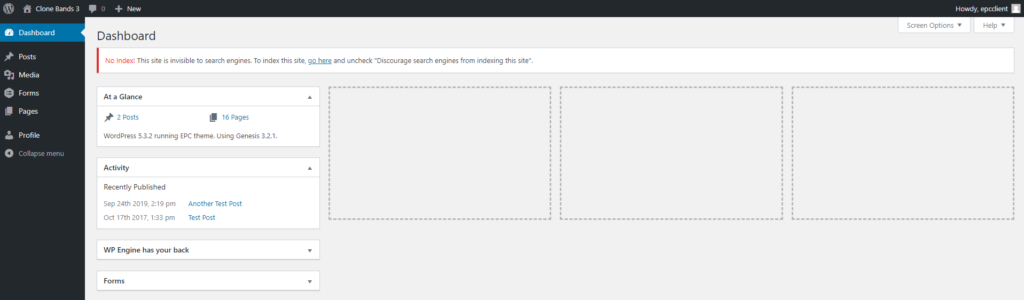
You will notice a few different options in the black admin bar in the left column and at the top of your screen after you’ve logged into your website as an administrator:
- Howdy, “Your Name” – Simply click on this option to be taken to your administrator user profile.
- Click ‘Edit My Profile’ to update your admin login email or password. The ‘Profile’ link in the left-column provides a shortcut to this page.
- In this section you’ll also find the option to log out of the admin mode on your website
- Posts – Within this section you can manage any entries to your News/Blog section of the website (if applicable). For the most part, setting up Posts is similar to managing the rest of the website pages via the Pages section of the website.
- Media – Within this section you can manage all images and uploaded documents. Clicking into individual files will allow you to view or edit the individual file.
- Forms – Within this section you can access previously submitted form results. Click on the ‘Entries’ link adjacent to the form title to access previous submissions.
- Pages – Similar to posts, this section will provide you with a complete list of all pages on your website. From this list you can easily search for a page (including draft content) or open an individual page to make edits.
- Select the ‘Add New’ option to create a new page. You’ll also find a link in the header for ‘+ New’ that will provide you with a shortcut for this action.