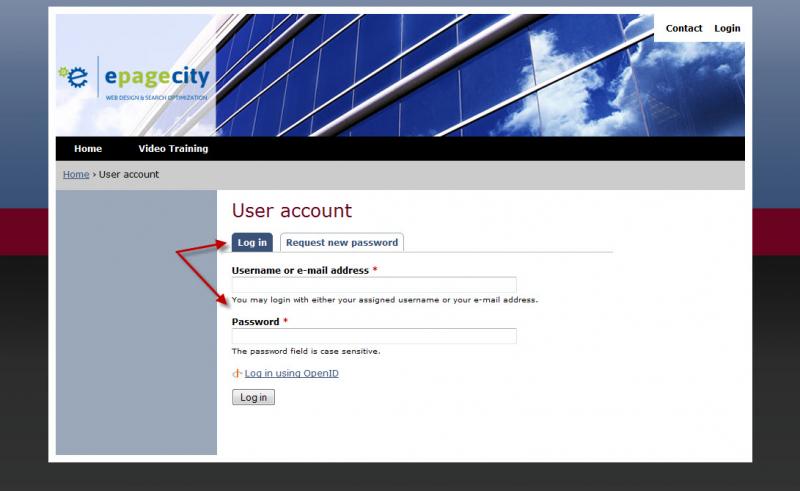
To log into your website admin area:
If your site is ‘live’ simply type in /user after your site’s URL to access your login screen.
- Example: Your website URL is www.cnn.com
- So, to login to your site you’d go to: www.cnn.com/user
- Note: This URL is only an example.
- Your username is simply your first and last name or email.
- If you have forgotten your password, simply click ‘request a new password’ from the /user page and type in your username. An email will be sent to you with instructions on logging in and resetting your password.
If you have not yet approved your site to launch/go live, and have not yet received your website editing login address, please contact an ePageCity customer service representative to obtain this once you have completed the tutorial videos.
Admin Bar:
You will notice a few different options in the grey/black admin bar at the top of your browser when you initially login:
- Hello “Your Name” – Simply click on this option to be taken to your administrator user profile.
- Click ‘edit’ on your profile page to update your admin login email or password.
- Logout – Simply click this to log out of your website’s admin mode.
- All Content – Your site’s sitemap. You can use this section to see a list of all pages on your site or filter pages by type such as finding a page currently set as unpublished.
- Add Content – How you add new content to your site. Please see the basic page tutorial for more details on using this area.
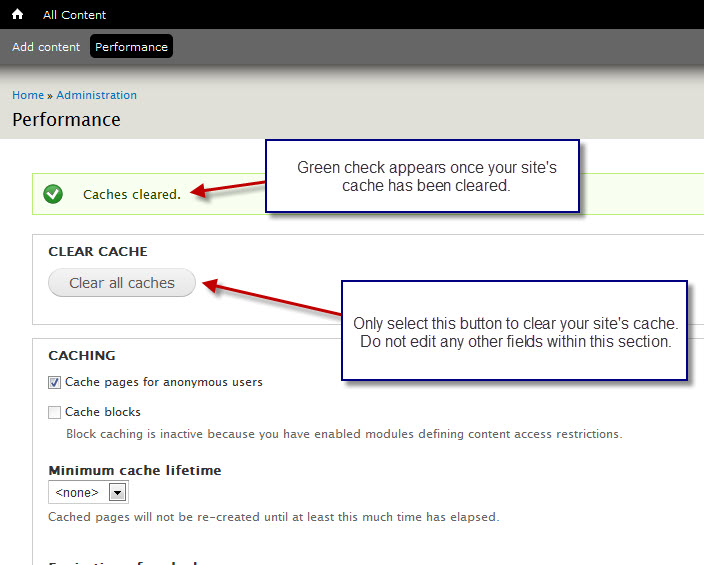
- Performance – If you notice odd errors, content ‘missing’ from your site, or need content changes to be available immediately on your site (instead of within 24 hours maximum), that you just recently added simply click Performance > Clear all Cache to clear your site’s cache.
- Clearing your site’s cache via the Performance tab will fix most common site errors and CMS troubles.
- Please do not edit any other options within this area.
See example images below (click to enlarge):